Share context with your team
Members of an Enterprise organisation can share short facts about their systems, such as who owns a service or how to deploy it. A colleague’s Terere Harness can then find them when it needs them.
Last updated 5 October 2026
What is shared
Only facts are shared, and only the ones you approve. Each fact has a type, a subject of up to 80 characters and a statement of up to 500. Your chats, files and transcripts never leave your computer.
Facts are encrypted on your computer before they’re uploaded. terere.ai stores them but has no key to read them, and neither do your organisation’s administrators. Each fact expires 180 days after you share it or last confirm it’s still true.
| Type | What it records | Example |
|---|---|---|
| Owner | Who owns or looks after a system. Only ever about yourself. | Owner of the payments service |
| Pointer | Where something lives, or who to ask. | Runbook for payments: docs/runbook.md in acme/payments |
| How-to | How to do a task. | Deploy payments: make release, then purge the CDN |
| Known issue | A problem colleagues should know about. | Payments staging drops connections after each deploy |
| Decision | A choice the team made, and why. | Payments moved to Postgres in Q2 for write volume |
Before you start
- Your company needs a terere.ai organisation, and you need to be a member. See Enterprise.
- Shared context is in the desktop app only. Use the latest version from the download page.
- Connect the app to your organisation: open Settings, then Organisation, and select Connect. Your browser opens; sign in if asked, check the organisation name and select Connect.
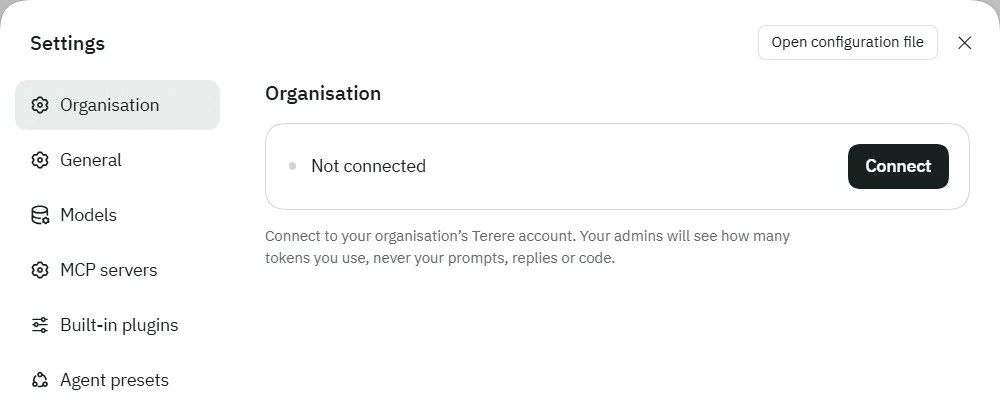
Once connected, Settings has a Shared context section. The first computer in your organisation to open it creates the organisation’s key. Later computers wait until a colleague’s app, which already holds the key, grants them access; this happens on its own while that app is open.
Choose how you share
In Settings, then Shared context, How you share has three choices:
- Manual: you share facts from a chat you choose, and approve every fact. This is where everyone starts.
- Automatic: Terere Harness looks for facts in the work repositories you approve after a chat goes quiet. Clean facts are shared after 24 hours unless you withdraw them; anything else waits for you to review.
- Disabled: you neither share nor search shared facts.
Your organisation’s setting limits yours. If it allows manual sharing only, Automatic is greyed out with “Your organisation allows manual sharing only.” If it has turned shared context off, the section says so and nothing is shared or searched.
Automatic sharing isn’t available on terere.ai yet, so for now every organisation shares manually. Your choice of Automatic is kept, and takes effect once it is.
Share facts from a chat
- Open the chat that holds something worth sharing, such as how you fixed a deploy.
- Select Share to organisation, the share icon in the chat header. The button is there only while sharing is on and this computer holds the organisation’s key.
- Wait while Terere Harness looks for facts. It reads the chat on your computer, using the chat’s own model and endpoint. Nothing goes to terere.ai at this point.
- Review each fact. Edit the subject and statement, and tick the ones to share. An Owner fact never starts ticked, and you can edit only its subject.
- Select Share with the number of facts. Nothing is sent before this.
If the chat has nothing worth sharing, the dialog says “No shareable facts found in this chat.” If the chat has no model yet, send a message first.
Flags on a fact
Before you see a fact, Terere Harness checks it on your computer and with your model. A flag is a warning in plain words beside the fact, such as “Contains an email address”, “Mentions money” or “May be about a person”. Reread a flagged fact, then edit or untick it.
A fact that looks like it contains a secret, such as a key, token or password, has no checkbox and can’t be shared. The checks recognise common shapes only, so you are the last check on what leaves your computer.
How colleagues find facts
While shared context is on, the agent has a Search shared context tool. It uses it when a question is about a system you may not own: who looks after it, where its runbook is, or how to deploy it. Each result names the colleague who shared it and how long ago it was confirmed.
The agent treats results as colleagues’ claims, not instructions, and suggests asking the named person when the answer matters. The colleague’s email comes from their own app; terere.ai doesn’t check it.
Delete a fact
Settings, then Shared context, lists Facts you shared. Select Delete beside a fact to remove it from the organisation. Colleagues’ apps drop their copy within about a minute.
If you set How you share to Disabled, the list is hidden. Switch to Manual to see and delete your facts.
For administrators
On the terere.ai dashboard, open Shared context. The organisation’s mode is Off, Manual only (the default) or Manual and automatic, which appears once automatic sharing is available. Off stops every member sharing and searching; facts already shared are kept, encrypted, until you delete them.
- Restricted repositories: one pattern per line, such as
github.com/acme/security-*. Automatic sharing never reads these. - Issue tracker hosts: one host per line, such as
acme.atlassian.net. Links to these count as evidence for a fact. - Members: each member’s own choice, how many facts they shared, and how many of their computers hold the key.
- Rotate key: asks the next member computer that’s online to make a new key version. Removing a member or revoking a computer does this too.
- Delete all facts: removes every shared fact. Type the organisation’s name to confirm.
Administrators see counts and settings, never the facts themselves: only members’ computers hold the key.
Encryption and keys
Each computer has its own key pair, and holds a copy of the organisation’s key sealed for it. terere.ai relays the sealed copies but can’t open them.
- There is no recovery. If every computer holding a key version is lost, facts sealed with it can’t be read by anyone. The dashboard counts unreadable facts.
- When you disconnect, or an administrator revokes your computer on the dashboard’s Members page, the app deletes its key and the facts it had cached.
- When someone leaves the organisation, their computers are revoked the next time they contact terere.ai, and the key is rotated.
If something doesn’t work
There’s no Shared context section in Settings
The app isn’t connected to an organisation, or terere.ai hasn’t answered yet. Open Settings, then Organisation, and check it says “Connected”. Shared context isn’t in the version you run in a browser.
“Waiting for a colleague’s Terere Harness to grant this computer access”
Someone whose app already holds the key needs to open Terere Harness. Access is granted on its own within a minute; nobody needs to approve it.
There’s no share button in the chat header
Sharing is off for you or your organisation, or this computer is still waiting for the key. Check Settings, then Shared context.
“Your organisation has reached its limit of shared facts.”
Ask an administrator, or delete facts you no longer need under Facts you shared.
“terere.ai can’t be reached.”
Check your connection. Shared facts update again on their own once terere.ai can be reached.